Downloading Riverscapes Projects using Viewer
With the Riverscapes Viewer for QGIS you can download riverscapes projects from the Riverscapes Data Exchange. This feature (new in version 1.1) allows you to browse the Data Exchange, select a project, and download it directly to your local computer workspace.
Downloading projects via the Viewer is the easiest way to get started with Riverscapes data in QGIS. It automatically handles the folder structure and prepares the project for viewing.
See the networking requirements at the bottom of this page if you experience problems with this feature or the Viewer fails attempting to download data.
Before You Begin
- Riverscapes Account: You must be logged in to access and download projects. Visit the Riverscapes Data Exchange and create an account first if you don't have one already. See also help on creating an account on our documentation site.
- Local Storage: Ensure you have enough disk space for the project you are downloading.
Getting Started
To open the download dialog:
- Click the Download Project button in the Riverscapes toolbar.
- Or right-click in the project explorer pane and choose
Download Project from Data Exchange.
Step 1: Project Selection
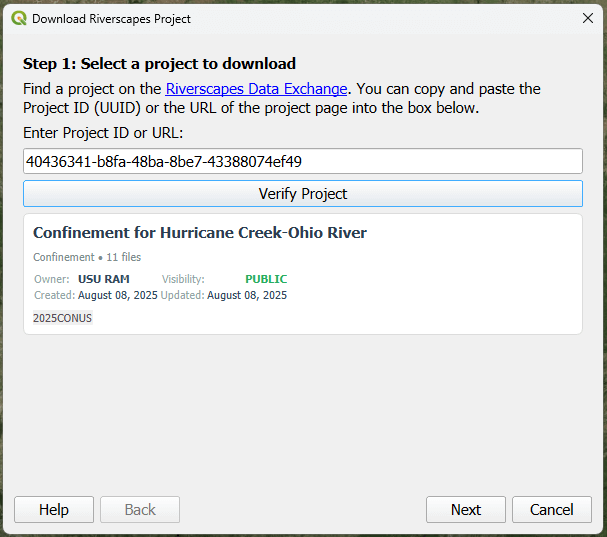
Find a project on the Riverscapes Data Exchange and copy either its Project ID (UUID) or the URL of the project page. (See remote projects for ways to copy the Project ID.)
- Paste the ID or URL into the input box.
- Click Verify Project.
- Once verified, you will see the project details, including the name, owner, and total number of files.
Click Next to proceed.
Step 2: Location Selection
Choose where on your computer the project should be saved.
- Parent Folder: Select the directory where you want the project folder to be created.
- Folder Name: This defaults to the project name but can be customized.
Click Next to proceed to file selection.
Step 3: File Selection
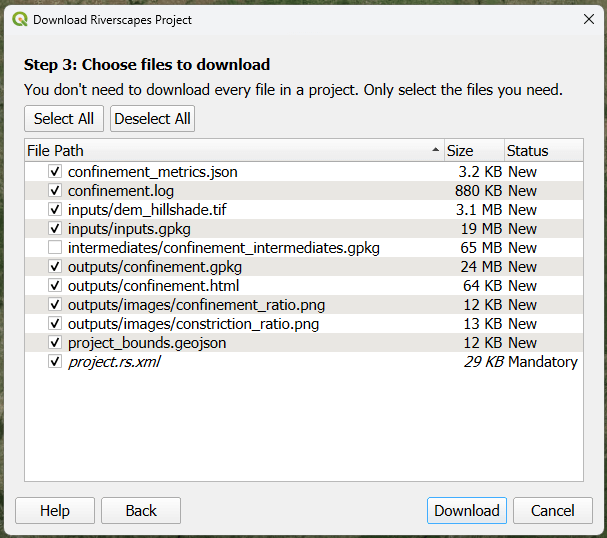
In this step, you can choose exactly which files you want to download. You don't always need everything! Each file will have one of the following Status values:
- New: Files that don't exist locally yet.
- Up to date: Files that already exist locally and match the version on the Data Exchange (these are locked by default).
- Update available: Files that exist locally but have a newer version available online.
- Mandatory: The
project.rs.xmlfile is always required and selected by default.
Use the checkboxes to select the files you need. Click Download to begin.
Step 4: Download Status
The final step shows the progress of the download.
- Overall Progress: Shows the total percentage and data transferred.
- File Progress: Shows which specific file is currently being downloaded.
- Completion: Once complete, the project will be automatically added to your Riverscapes Viewer project explorer.
Notes
- If you are updating an existing project, the downloader will only download the files that have changed, saving time and bandwidth.
- You can cancel the download at any time, but the project may be in an incomplete state until the download is resumed and finished.
Networking Requirements
The download feature makes POST requests to https://api.data.riverscapes.net via port 443 as well as GET requests over port 80.
Contact your IT administrator if the download feature fails with HTTPS warnings. You might need to request that your IT administrator configures your network to allow communication to api.data.riverscapes.net over port 443.