Remote Projects in Riverscapes Viewer for QGIS
Sometimes you want to browse and interact with projects in the Data Exchange in QGIS, but without downloading those projects as local files. Alternatively, you might want to view a project and would otherwise use the Web Viewer, but you want to contextualize a project alongside other data that you have on your computer.
The Remote Projects feature (new in version 1.1) makes it possible to connect to a project on the Data Exchange and view any of its layers (raster and vector) using tile services that will stream only the information needed to display what you've selected in the visible area of your map window. This can be useful when you are interested in a small portion of a very large project. Once you have loaded a remote project, if you do need to do further analysis and want the local files, the viewer context menu makes it easy to download the project either in its entirety, or selectively choose specific layers.
Requirements
You will need:
- A Riverscapes account. Visit the Data Exchange and create one first if you don't have one already. See also help on creating an account on our documentation site.
- A reasonably good internet connection for streaming layers.
Usage
Find and identify the Data Exchange project
The first step in viewing a remote project in QGIS is to get the project ID, a 36-character unique identifier for every project assigned by the Data Exchange when a project is uploaded. Unless it was sent to you, the easiest way to do that is to browse the Riverscapes Data Exchange at data.riverscapes.net and use the powerful search features. Once you find the project, you can get the Project ID in many ways:
- on a project page, you can copy the URL. This contains the project ID and the remote projects dialog will parse it from the page URL.
- on a project page, there is a widget in top right corner to copy the project to clipboard, shown below. Choose
Copy project ID. - on a project page, in the overview tab, the PROJECT ID is displayed, and there is a copy to clipboard button next to it.
- in project 'cards' shown in search results, the kebob menu has a Copy Project ID to clipboard option.
- in project table view, there is a copy project to clipboard button
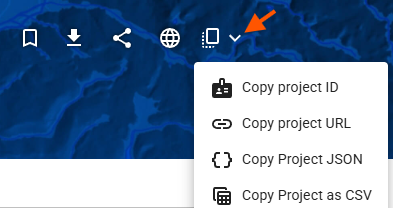 .
.
If you have the project downloaded and loaded into the riverscapes viewer, you can also get the project ID from the riverscapes metadata panel under 'Warehouse Meta', id. Right click on it and choose 'Copy value'.
Load a remote project
- From the Riverscapes Viewer toolbar button, choose Open Remote Project as shown.

- Paste the Project ID in the dialog

- A browser window will open to authenticate your Riverscapes account (only once per QGIS session).
- The project will appear in the Riverscapes Viewer Pane, and the default view will open in the map.
Limitations
- This is a new feature in version 1.1. Not all features of the viewer for local projects are implemented for remote projects.
- QGIS can be quite sluggish with web map tiles. Zoom in to reduce the amount of tiles needed.
- Web map tiles are essentially PNG images served over the internet. You cannot perform analysis on these tiles. They are merely for display. Download the project if you want to work with the data directly, such as filtering or geoprocessing.
This feature is only available in Riverscapes Viewer for QGIS. It is not available in the ArcGIS or ArcGIS Pro versions of the Viewer.